Quick answer: if Lossless Scaling is not working, it almost always comes down to one of four things. Your game isn’t in borderless windowed mode, an overlay is getting in the way, you’re on the wrong capture API (try WGC if DXGI gives you a black screen), or your GPU is maxed out so there’s nothing left for frame generation. Fix those and most problems disappear.
Last updated: October 2026
I use Lossless Scaling most days, so I’ve hit a fair few of these myself whenever Lossless Scaling stops working after an update or in a new game. Find your problem in the table below and jump straight to the fix. The screenshots are from my own setup.
| Problem | Try this first |
|---|---|
| Nothing happens when I press Scale | Switch the game to borderless windowed, then click back into the game |
| Black screen or frozen frame | Change Capture API (DXGI to WGC or back) and turn off overlays |
| Stutter | Cap your base FPS and keep GPU usage under about 90% |
| FPS drops when I turn it on | Lower Flow scale and turn on Performance mode |
| Counter says it works but it feels the same | Get your base FPS above about 40 first |
| Shows on the wrong monitor | Set Output display to your gaming monitor |
| Crashes or closes | Update Lossless Scaling and your GPU driver, close other overlays |
| Doesn’t work in fullscreen | Use borderless windowed instead |
If you’re after the exact settings I run day to day, check my Lossless Scaling best settings guide. Still deciding whether it’s worth buying? My Lossless Scaling review covers that. This page is just for when Lossless Scaling is not working the way it should.
Why does nothing happen when I press Scale?
Nine times out of ten this is the window mode or focus. Go through these:
- Put the game in borderless windowed (or windowed) mode. Lossless Scaling captures a window, so exclusive fullscreen usually won’t work.
- Click back into the game. Scaling applies to whichever window is in focus. If you click Scale in the app, switch to the game before the scale delay runs out, or just use the hotkey (Ctrl + Alt + S by default) while you’re in the game.
- Run it as administrator if the game is. If a game or its launcher runs with admin rights, Lossless Scaling needs them too or it can’t grab the window.
- Check the hotkey isn’t clashing with another app like Discord or your GPU software. Change it in Settings if so.
How do I fix a black screen or frozen frame in Lossless Scaling?
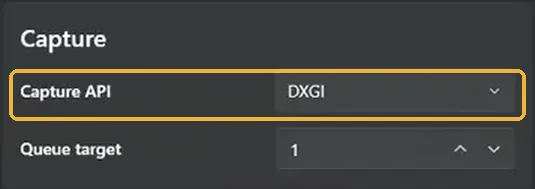
This is the most common one. The first thing to try is the Capture API setting, it’s in the Capture box on the left of the app:
Then work through the rest in order:
- Switch the capture API. Go from DXGI to WGC (or the other way) and try again. WGC tends to be more stable with HDR and overlays. I explain the difference in my settings guide.
- Turn off overlays. Steam, Discord, the NVIDIA app or GeForce Experience, Xbox Game Bar and MSI Afterburner overlays can all fight with Lossless Scaling’s capture.
- Check HDR. If Windows HDR is on, turn on HDR support in Lossless Scaling as well, or turn HDR off in both to test.
- Close GPU and RGB utilities like Armoury Crate or MSI Center while testing. They’re a known source of conflicts.
- Update your GPU driver and restart. Boring, but it fixes more than you’d think.
Why does Lossless Scaling stutter?
Frame generation needs a steady base frame rate to work with. If your real FPS is jumping around, the generated frames will stutter too. Fixes:
- Cap your base FPS to something your PC can hold all the time, for example 60 for a 120 Hz screen with X2, or 48 for a 144 Hz screen with X3. RTSS or your GPU driver’s limiter are usually steadier than in-game limiters.
- Leave GPU headroom. If the game is sitting at 99 to 100% GPU usage, Lossless Scaling has nothing left to work with. Lower a setting or two until usage sits below about 90%.
- Turn in-game VSync off and let Lossless Scaling handle sync.
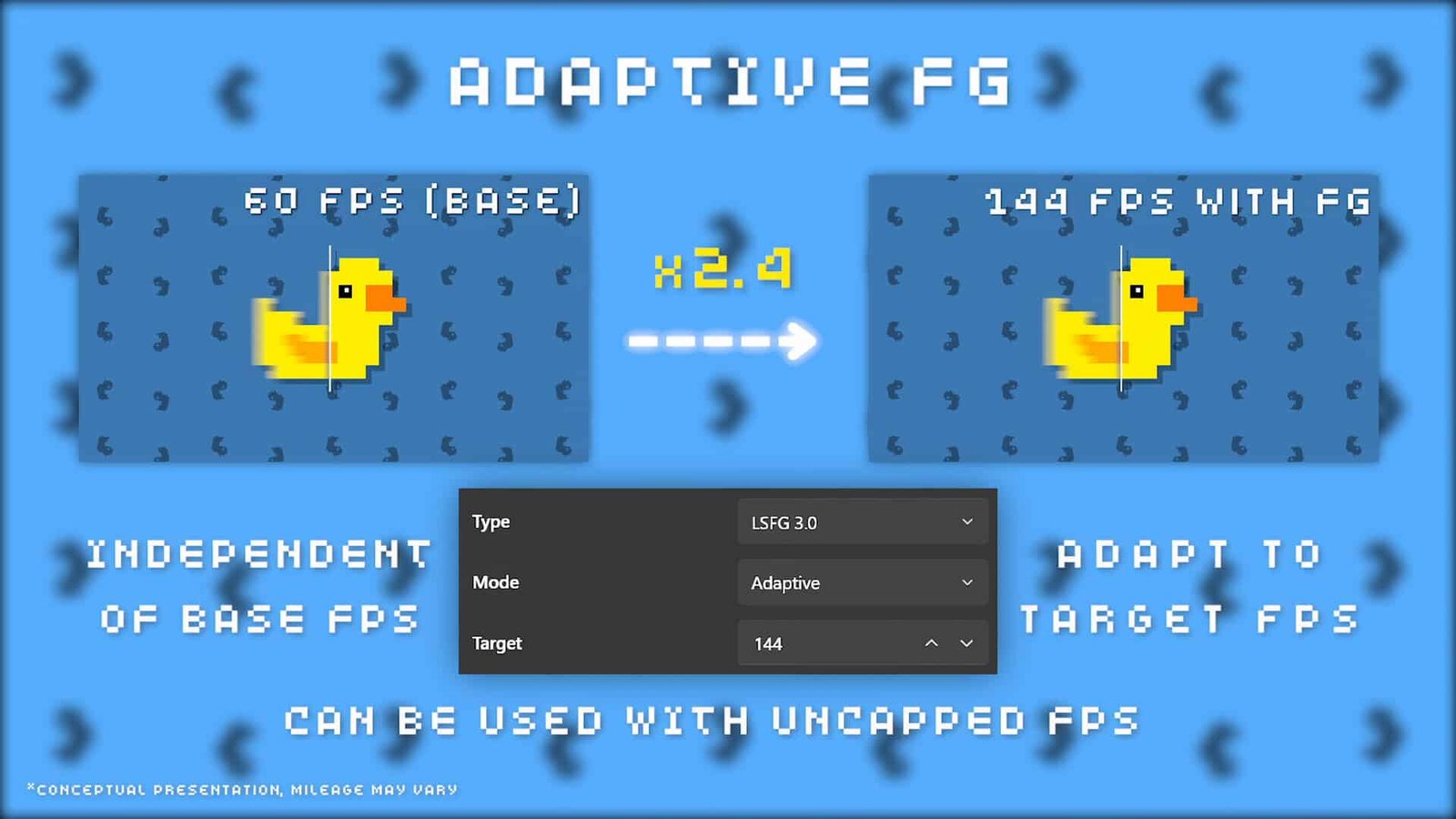
- Try Fixed mode (X2 or X3) instead of Adaptive if your base FPS is already locked. Adaptive is great when your FPS moves around, Fixed can feel smoother when it doesn’t.
Why does my FPS drop when I turn Lossless Scaling on?
Because frame generation runs on your GPU too. If the game was already using most of your GPU, turning Lossless Scaling on takes some of that away and your real (base) FPS drops, say from 60 to 50. Two settings in the Frame Generation box make it much lighter:
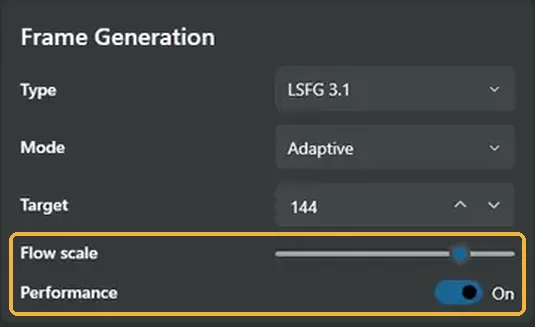
- Lower Flow scale. It controls how much detail frame generation works with. The higher your resolution, the lower you can go without noticing: roughly 100% at 1080p, 75% at 1440p and 50% at 4K is a good starting point.
- Turn on Performance mode. It uses a lighter version of frame generation. The quality drop is small and I leave it on all the time.
- Use a second GPU if you have one. Lossless Scaling can run on a different GPU to the game (set it under Preferred GPU), which takes the load off your main card completely.
The FPS counter says it’s working, so why doesn’t it feel smoother?
Turn on Draw FPS in the Rendering box. It shows two numbers: your real base FPS and the output FPS.
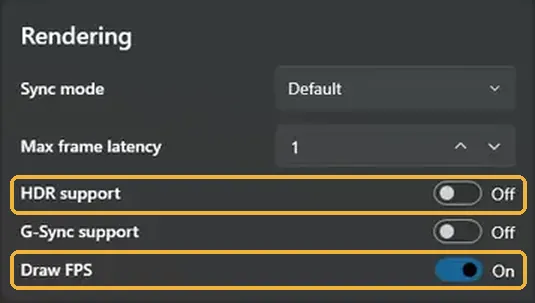
If the output number is doubled but it still feels bad, your base FPS is probably too low. Frame generation makes motion look smoother but it can’t fix how the game responds, so below roughly 40 base FPS it’ll still feel sluggish. Get your base frame rate up first, then add frame gen on top.
If it feels laggy rather than choppy, that’s input lag. I’ve got a whole section on reducing input lag with Lossless Scaling in the settings guide.
Why is Lossless Scaling showing on the wrong monitor?
Check the Output display option in the GPU and Display box and set it to the monitor you’re gaming on, instead of Auto. It also helps to have the game running on your main display.
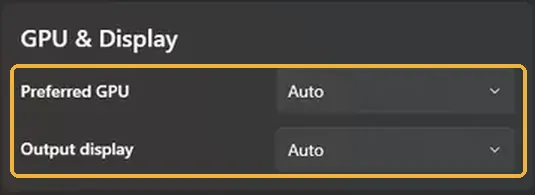
If you’ve got a second GPU set up for Lossless Scaling, check Preferred GPU points at the right card and that your monitor is plugged into that GPU.
What if Lossless Scaling crashes or closes?
- Update both Lossless Scaling (Steam should do it automatically) and your GPU driver.
- Close overlays and tools that also hook into games, like Flawless Widescreen or ReShade, and test again.
- If a recent update broke a specific game, you can roll back to an older version through Steam: right click Lossless Scaling, Properties, Betas, and pick an older branch.
Does Lossless Scaling work in fullscreen games?
Not in exclusive fullscreen, no. Switch the game to borderless windowed. On modern Windows there’s almost no performance difference between the two, so you’re not losing anything.
Lossless Scaling still not working after all that? Let me know what’s happening in the comments and I’ll try to help. For more tech guides click here.