Last updated: October 2026
Quick answer: there’s no single perfect profile, but a solid setup for most people is LSFG 3.1 frame generation in Adaptive mode targeting your monitor’s refresh rate (or Fixed X2 if your GPU is struggling), Performance on if you’re short on GPU headroom, Queue Target 1, Sync Mode on Default, and your game in borderless windowed with in-game VSync off. My exact 144 FPS profile is below.
I use Lossless Scaling mostly to push games that are capped around 60 FPS up to 144 on my monitor. If you want to know what the tool is and whether it’s worth the $6.99, read my full Lossless Scaling review first. This page is just the settings.
My Lossless Scaling settings (144 FPS profile)
This is the profile I actually play with. I wouldn’t call it perfectly optimised, but it’s what I use day to day.
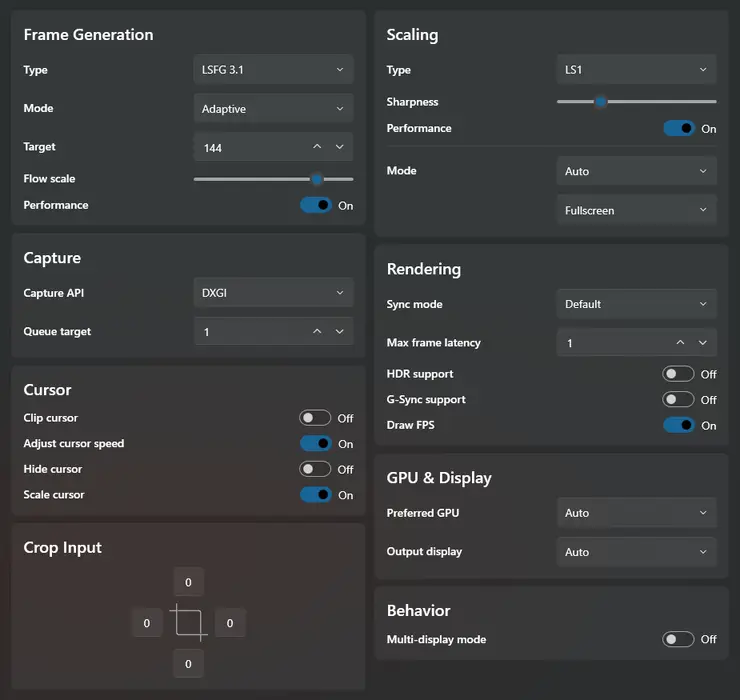
| Setting | What I use | Why |
|---|---|---|
| Frame Generation type | LSFG 3.1 | The latest frame gen model |
| Mode | Adaptive, target 144 | My games are capped around 60, and 60 doesn’t multiply neatly into 144. Adaptive fills the gap to hit my refresh rate |
| Flow Scale | Fairly high | Cleaner generated frames. Lower it if your FPS dips |
| Performance (frame gen) | On | Lighter model, so frame gen eats less GPU |
| Capture API | DXGI | The older capture method, can be slightly faster. WGC is worth trying on Windows 11 24H2 |
| Queue Target | 1 | Good balance of latency and stability |
| Scaling type | LS1, Performance on, low sharpness | A bit of extra headroom without over-sharpening |
| Scaling mode | Auto, Fullscreen | Stretches the game to fill the screen |
| Sync Mode | Default | Balanced. Off can tear, VSync adds lag |
| Max Frame Latency | 1 | To cut input lag. Go back to the default of 3 if you get stutter |
| HDR / G-Sync support | Off | Only turn these on if your monitor uses them |
| Draw FPS | On | Handy to check you’re actually hitting your target |
What is the best frame generation mode in Lossless Scaling?
It depends on your frame rate and GPU. Adaptive lets you set a target FPS (usually your monitor’s refresh rate) and gives the smoothest frame pacing, which is why I use it to go from a 60 FPS cap to 144. It’s also the heaviest mode. Fixed X2 uses the least GPU and is the safe pick if your graphics card is already working hard or Adaptive gives you artifacts. Anything above X3 or X4 is more of a party trick than something you’d actually play with.
What should I set Flow Scale to?
A common starting point is about 80 to 100 at 1080p, 65 to 75 at 1440p and 40 to 50 at 4K. Flow Scale controls how detailed the motion estimate is. Higher values give cleaner generated frames but cost more GPU. If you see ghosting around your character or the UI, raise it a little. If your FPS drops, lower it.
Should I turn Performance mode on?
Turn it on if your GPU is close to maxed out. It uses a lighter frame gen model, so quality drops slightly but it frees up a lot of GPU. I run it on. Some people leave it off in fast shooters where the camera moves around a lot, since that’s where the quality drop is easiest to notice.
DXGI vs WGC: which capture API should I use?
WGC is the newer method and is generally recommended on Windows 11 24H2 or newer, and it handles overlays and screenshots better. DXGI is the older one and can be slightly faster, especially on older builds or low-end PCs. I use DXGI. If one gives you stutter or a black screen, just try the other.
What should Queue Target be?
1. That’s a one-frame buffer and the best balance of latency and stability. 0 has the lowest latency but can get unstable. Only go up to 2 if your capture is stuttering.
What should Max Frame Latency be?
The default is 3 and that’s fine for most people. I run mine on 1 to cut down input lag, since frame generation adds a bit on top of the game’s own. Lower values can cost performance in heavier games, so if you notice stutter or FPS drops, go back up to 2 or 3.
Should I turn VSync on or off with Lossless Scaling?
Turn VSync off in the game. Leave Lossless Scaling’s Sync Mode on Default. If you have a G-Sync or FreeSync monitor, turn on G-Sync Support in Lossless Scaling and set VSync in your GPU driver (NVIDIA Control Panel or AMD Adrenaline) instead.
What base FPS do I need for frame generation?
At least 40 FPS, ideally 60 or more. Frame generation makes motion look smoother but it can’t fix input lag from a low base frame rate, so 30 FPS doubled to 60 still feels like 30 on the mouse. Cap your base FPS with RTSS or the game’s own limiter so it stays steady, and keep GPU usage under about 95% so Lossless Scaling has room to work.
Should I use LS1 upscaling as well?
Use it if frame generation alone isn’t getting you enough FPS. I run LS1 with its Performance toggle on and sharpness kept low. For pixel art games use Integer Scaling instead, and for anime-style games try Anime4K.
How do I reduce input lag with Lossless Scaling?
Frame generation always adds a little input lag on top of the game’s own, so the goal is to keep that extra as small as possible. Roughly in order of how much they help:
- Raise your base FPS. This matters most. Frame gen smooths motion but can’t make a 60 FPS game respond like a 144 FPS one, so the higher your real frame rate, the snappier it feels.
- Turn on NVIDIA Reflex or AMD Anti-Lag. Use it in-game if the game supports it, or at driver level. Capping your base FPS with RTSS using its Reflex limiter also helps.
- Keep GPU usage under about 95%. When your GPU is maxed out, frames start queuing up and lag jumps. Lower in-game settings or turn on Performance mode if you need headroom.
- Lower Max Frame Latency. I run mine on 1 for this reason. If you get stutter, go back up to 2 or 3.
- Keep Queue Target at 0 or 1. Lower is faster, but 0 can get unstable.
- Try Fixed X2 instead of Adaptive. It’s lighter on the GPU. The trade-off is you lose the smooth fill to your exact refresh rate.
- Set Sync Mode to Off. This gives the lowest latency, but you may see screen tearing.
How do I reduce ghosting and artifacts?
- Raise your base frame rate (lower in-game settings if you need to).
- Switch from Adaptive to Fixed X2.
- Increase Flow Scale.
- Turn off Discord, Steam and GPU driver overlays.
Does Lossless Scaling work with GeForce Now?
Yes, and it’s how I play most of my cloud games. Because the game runs on NVIDIA’s servers, my own GPU is barely doing anything, so there’s plenty of headroom left for Lossless Scaling. I set the in-game graphics to look nice, even if that means somewhere between 60 and 120 FPS, then run this same profile aiming for 144 FPS. It looks great, and I get graphics I couldn’t run locally at that frame rate.
The catch is input lag. Frame generation adds a little on top of the lag cloud gaming already has, so I only do this for single player and non-competitive games. More on that in my GeForce Now Ultimate review.
Is Lossless Scaling free?
No. It’s a one-time purchase of $6.99 USD on Steam. It runs on 64-bit Windows 10 (version 2004) or newer, with Windows 11 24H2 recommended.
Got a setting that works better for you? Feel free to leave a comment below! For more tech content click here.