Last updated: August 2026
Quick take: Lossless Scaling ($6.99, Steam) is a third-party frame generation and upscaling tool that works over almost any windowed game, regardless of whether the developer added DLSS, FSR, or XeSS support. If a game caps your FPS or your CPU is holding back a stronger GPU, this is one of the cheapest ways to fix that. It’s rougher around the edges than native upscaling, but nothing else works everywhere the way this does.
Get it on Steam ($6.99). This is the tool I actively use and recommend.
My Personal Experience with Lossless Scaling
I’ve been using Lossless Scaling on Steam for a while now and I think it’s great. It’s not a perfect solution and doesn’t feel entirely native, but what makes it great is that it works on pretty much any game, with some tweaking.
I have a weaker CPU than GPU, and a lot of the games I play have hard FPS limits around 60. With Lossless Scaling I can push that up to 144FPS or whatever I want, bypassing that CPU bottleneck entirely. I underestimated how much more enjoyable a game becomes once low FPS stops taking you out of the experience. It’s transformed how I approach older titles and indie games that never got native upscaling support.
At $6.99 it’s an easy recommendation. It’s one of those tools you’ll either use every day or wonder how you lived without.
What Is Lossless Scaling?
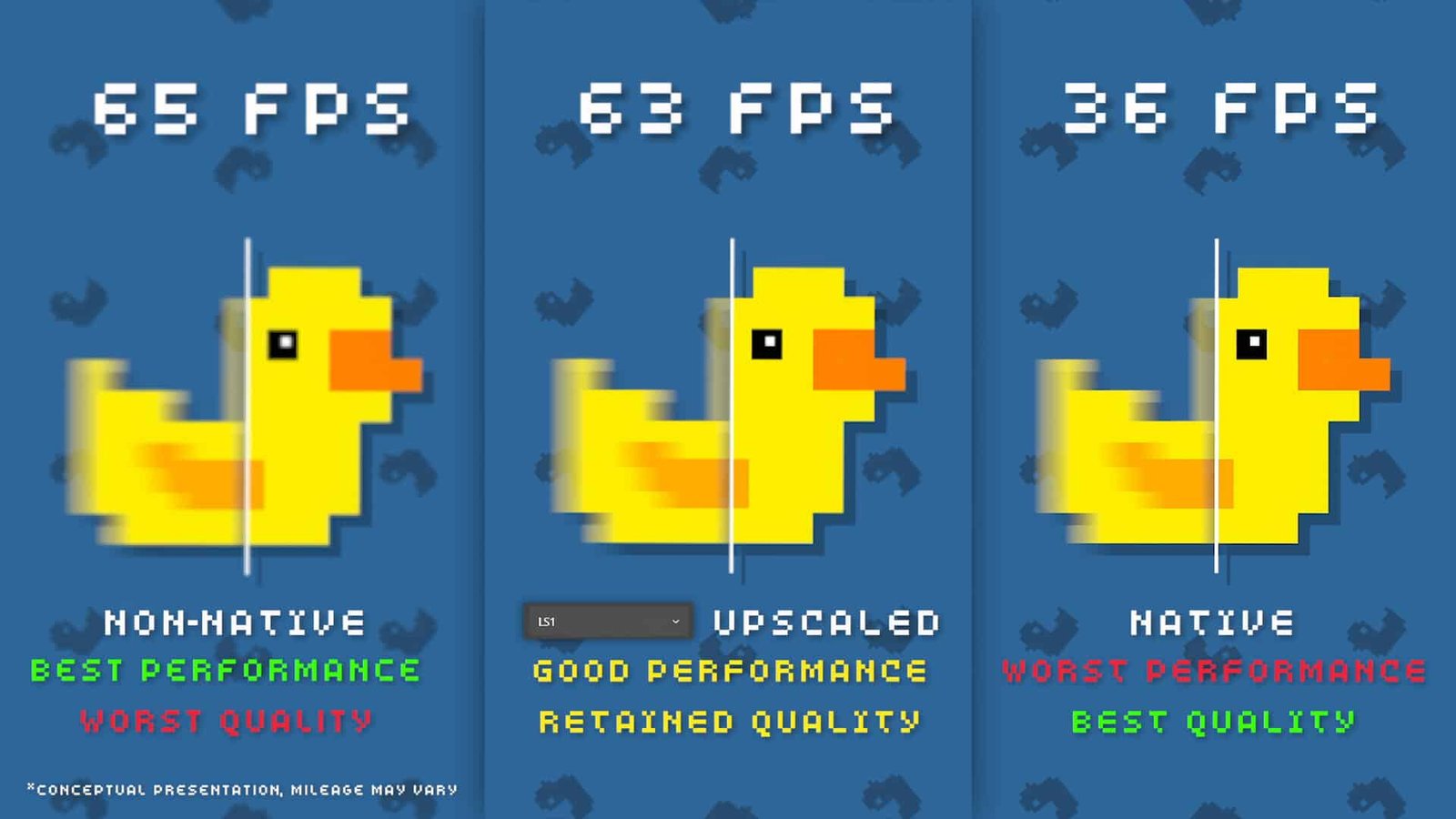
Contrary to what the name might suggest, “Lossless Scaling” isn’t about truly lossless image quality. It’s a branding choice that emphasizes minimal quality loss compared to traditional upscaling methods. The software offers two main categories of technology:
- Spatial Upscaling: Increases resolution while attempting to preserve detail
- Frame Generation: Creates intermediate frames to increase perceived frame rate
How Lossless Scaling Works
Spatial Upscaling Options
Lossless Scaling offers multiple upscaling algorithms tailored to different content types:
- LS1: Proprietary ML-based algorithm with good detail preservation, similar in approach to FSR 1.0 (it doesn’t use game engine information the way DLSS/FSR does), and better at keeping fine details fine.
- AMD FSR 1.0: Implementation of AMD’s open-source upscaler, balanced for quality and performance.
- NVIDIA Image Scaling (NIS): NVIDIA’s spatial upscaling algorithm (different from DLSS).
- Integer Scaling: Perfect for pixel art games, preserving sharp pixel edges.
- xBR: Specialized algorithm for smoother pixel art upscaling.
- Anime4K: Optimized for anime and cartoon-style content.
- Bicubic CAS: Combines bicubic interpolation with AMD’s Contrast Adaptive Sharpening.
Frame Generation Technologies
Lossless Scaling offers two primary frame generation modes:
- LSFG (Lossless Scaling Frame Generation): Uses fixed multipliers to double, triple, or now go as high as 20x your perceived frame rate, though X2 is still the recommended practical setting for most people; anything past 3x-4x is more novelty than usable.
- AFG (Adaptive Frame Generation): Dynamically adjusts frame generation to maintain a targeted frame rate.
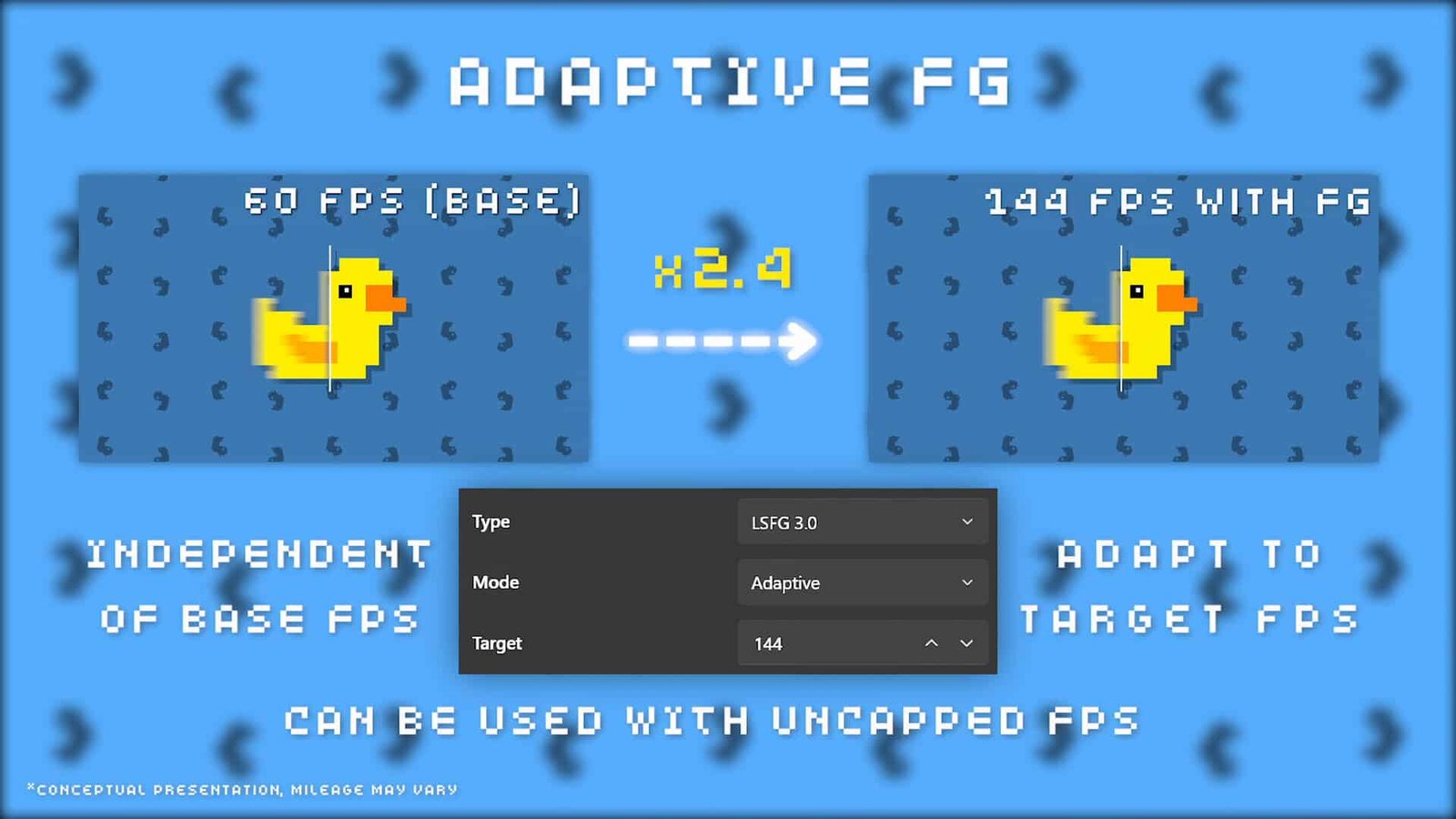
LSFG has moved through several major versions since launch. LSFG 3 brought a significant latency and performance improvement over the original release, and the 3.x updates since have added a Performance Mode that uses a lighter model to reduce the GPU load frame generation itself adds. Worth turning on if you’re already GPU-bound.
Comparison to Native Upscaling Solutions
Lossless Scaling vs. DLSS/FSR/XeSS:
- Flexibility: Lossless Scaling works on any windowed application; DLSS/FSR require game developer integration.
- Performance: Native solutions (especially DLSS 3/3.5 with Frame Generation) typically offer cleaner results with lower input lag.
- Quality: LS1 is generally considered good but not quite matching DLSS 3/3.5 quality. FSR 3/3.5 may be closer in quality to LS1.
- Cost: Lossless Scaling is a one-time $6.99; native solutions are free but gated behind developer support and often specific hardware.
Key Technical Differences:
- DLSS and FSR use game engine information for more intelligent upscaling.
- LS1 and FSR 1.0 work purely on the final rendered image (spatial upscaling only).
- Lossless Scaling can apply frame generation universally, even to games without native frame generation support.
System Requirements
- Operating System: 64-bit Windows 10 (version 2004) or newer. Windows 11 version 24H2+ recommended for the latest features.
- Hardware: Compatible with NVIDIA, AMD, and Intel GPUs.
- Recommended GPU: NVIDIA RTX 30 series, AMD RX 6000 series, or Intel Arc series.
- Application Compatibility: Target applications must run in Windowed or Borderless Windowed mode (Exclusive Fullscreen is not supported).
How to Set Up Lossless Scaling
- Purchase and install Lossless Scaling from Steam.
- Configure your target game to run in Windowed or Borderless Windowed mode.
- Disable VSync in the game’s settings.
- Launch your game, then alt-tab to Lossless Scaling.
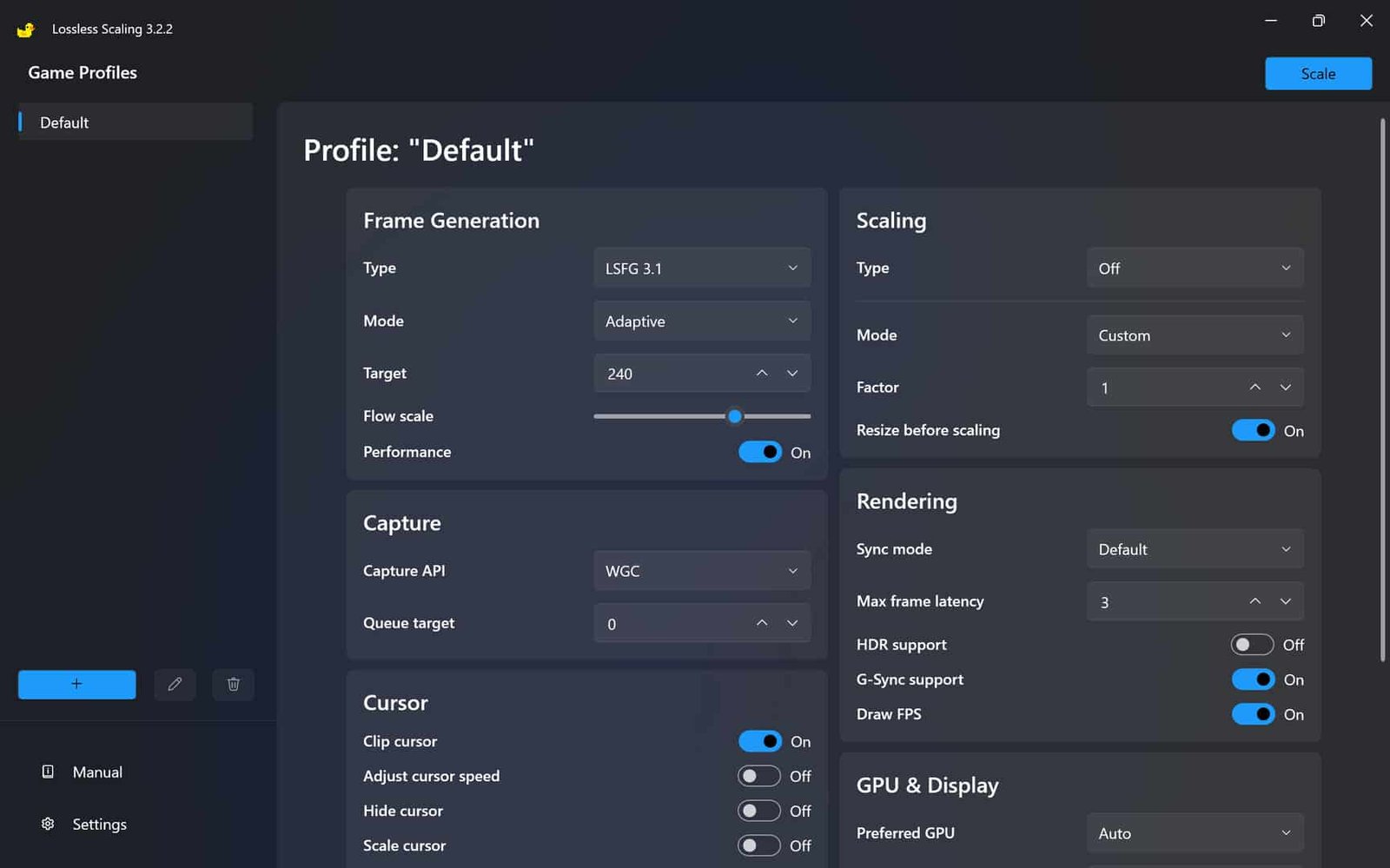
- Select your preferred scaling type and frame generation settings.
- Click the “Scale” button and quickly switch back to your game.
- Use the default hotkey (Ctrl+Alt+S) to toggle scaling on and off during gameplay.
Want to copy my exact setup? I’ve put my full 144 FPS profile with a screenshot in my Lossless Scaling best settings guide.
Best Practices for Optimal Performance
- Stable Frame Rate: For frame generation, lock your base frame rate using in-game options or external tools like RTSS.
- GPU Headroom: Aim for 70-80% GPU utilisation before enabling frame generation.
- Disable Interfering Overlays: Turn off Steam, Discord, and other overlays that might conflict.
- Experiment with Capture Methods: Try both DXGI and WGC capture APIs to find what works best for your setup.
- Sharpness Settings: In LS1, the sharpness scale runs 1-4 (1 = 25% sharpness). Start low and increase gradually.
Choosing the Right Scaling Algorithm
- Modern 3D Games: Use LS1 or AMD FSR for the best quality balance.
- Pixel Art Games: Integer Scaling for sharp pixels, xBR for a smoother look.
- Anime/Cartoon Content: Anime4K is optimised for this content type.
- Games with Oversharpening Issues: FSR tends to exaggerate sharpening artifacts less than LS1.
What About Steam Deck and Linux?
The official Lossless Scaling app is Windows-only, but Steam Deck and other Linux/SteamOS users aren’t completely locked out. The community-driven lsfg-vk project brings LSFG-style frame generation to Linux, and it’s become the go-to path for Deck owners chasing smoother frame pacing on handheld hardware. It’s community-maintained rather than official, and focused on frame generation rather than the full upscaling suite, so treat it as a solid but rougher option compared to the native Windows app.
Conclusion
Lossless Scaling is a powerful tool for gamers who want universal upscaling and frame generation without relying on game developer integration. Native DLSS 3/3.5 and FSR 3/3.5 typically offer superior quality and lower latency when they’re available, but Lossless Scaling covers everything they don’t: older games, indie titles, and anything else that never got modern upscaling support. For a one-time $6.99, especially if you’re bottlenecked the way I am, it’s hard to argue with.
Have you used Lossless Scaling? Share your experience in the comments below!